

You’ve got the enemy perfectly lined up. You pull the trigger… and for a split second, nothing happens. By the time your shot registers on screen, you’re already watching the killcam. This frustrating experience, known as lag, feels like an invisible force cheating you out of a win. But it’s not random, and you have more power to fight back against it than you might think. To learn more, check out ufag7
So, why is my game lagging with good internet? The answer lies in understanding that internet “speed” and gaming “responsiveness” are two completely different things. The speed you pay for is your bandwidth—think of it as how many lanes are on a highway. The responsiveness your game needs is latency—how fast a single car can get from your home to its destination. For gaming, a quick travel time is far more important than the number of lanes available.
The good news is that many of the biggest causes of high latency are hiding right in your home network, and they are surprisingly easy to fix. This guide provides a complete checklist of tips to reduce lag, helping you:
- Acknowledge the true source of your lag (it’s usually not your internet speed).
- Follow a prioritized, step-by-step checklist, from easy wins to advanced tweaks.
- Feel empowered knowing you can solve most lag issues yourself, today.
Step 1: The Single Most Effective Way to Reduce Lag Instantly
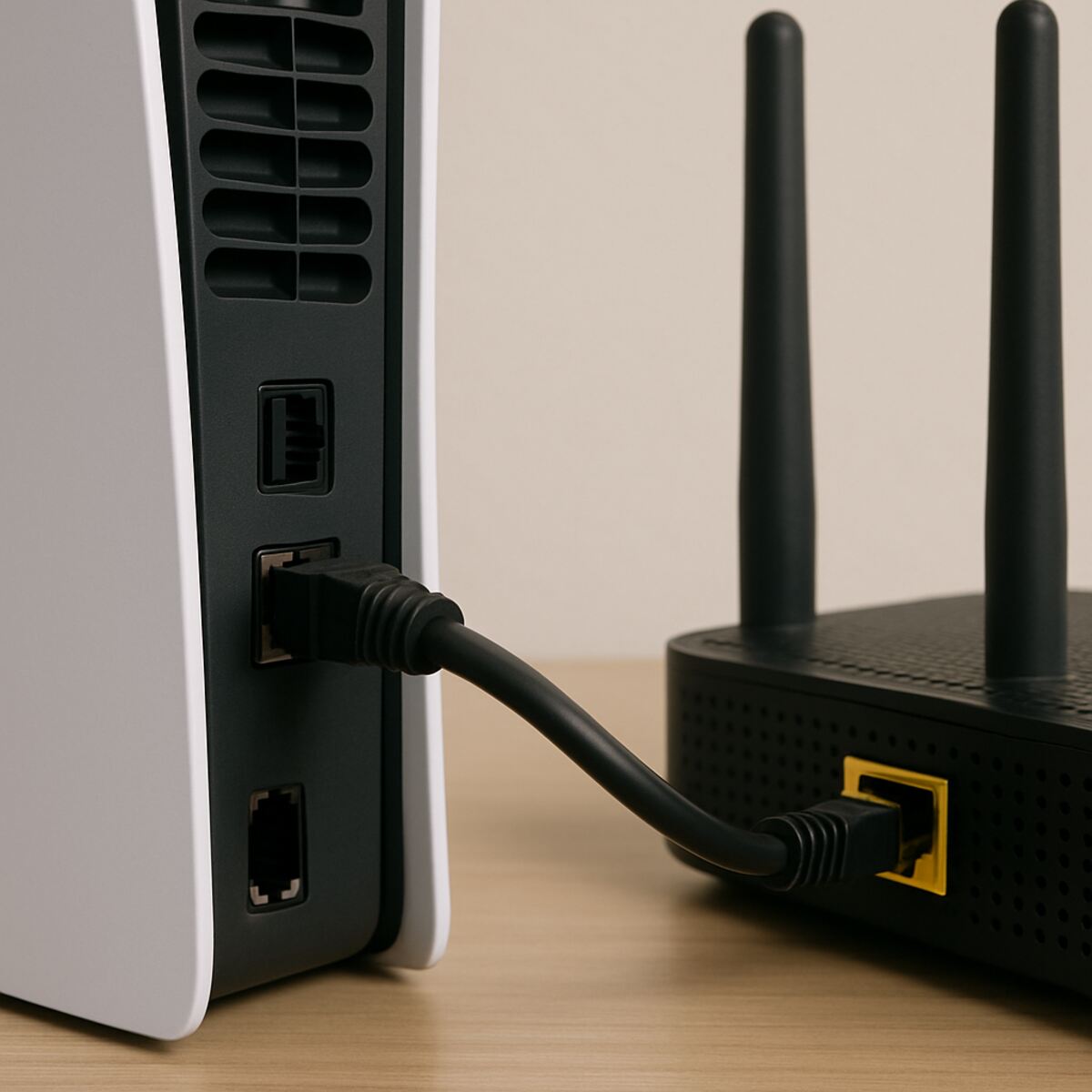
If you’re gaming over Wi-Fi, you’re often fighting an invisible battle you don’t need to. The single most effective way to create a more stable connection is surprisingly simple: plug an Ethernet cable directly from your router into your PC or console. Think of Wi-Fi as trying to shout instructions across a crowded, noisy room—messages can get delayed or lost. An Ethernet cable, in contrast, is like a private, direct hallway to the internet, ensuring your commands arrive instantly and without interruption.
That “noise” for a Wi-Fi signal comes from everywhere: other wireless devices, your neighbor’s network, and even physical barriers like brick walls or a floor between you and your router. This interference is a primary cause of those frustrating, random lag spikes that make your ping jump, even if your internet plan is fast. Because a wired connection bypasses this chaos, it provides a consistent data flow that is absolutely critical for online games. This simple change is one of the best solutions to fix gaming lag spikes.
Best of all, you don’t need a fancy “gaming” cable to see a massive difference. Any standard Ethernet cable labeled “Cat 5e” or “Cat 6” will give you the top-tier performance needed to reduce your ping. For just a few dollars, this is often the most powerful and immediate upgrade you can make for a smoother, more responsive gaming experience.
Step 2: The Universal “Gamer’s Reset” to Clear Hidden Issues
Sometimes, even with a great connection, lag can creep in during a long gaming session. This is often caused by temporary data and small errors building up in your game, your console or PC, and your network hardware. To troubleshoot high latency issues like this, you need a full system flush, not just a quick restart. Think of it as a “power nap” for your entire setup.
This specific order is crucial because it clears out problems from the top down. Performing these steps out of sequence is one of the most common mistakes people make, but getting it right is one of the best gaming lag spikes solutions.
- Fully Close the Game: Don’t just minimize it. This clears any in-game bugs.
- Restart Your PC or Console: This clears the system cache—your device’s short-term memory—where corrupted temporary files can hide.
- Power Cycle Your Network: Unplug both your modem and router from the wall. Wait a full 60 seconds to let them completely drain power and reset. Then, plug in the modem first. Wait until all its lights are stable (usually 1-2 minutes), and only then plug in your router.
Performing this sequence ensures you’re starting with a completely clean slate, from the game itself all the way to your internet connection. It’s a powerful way to fix lag in online multiplayer games that appears suddenly. If a full reset doesn’t solve the problem, it might be time to look deeper at the nature of your internet connection itself.
Why a “Fast” 500 Mbps Plan Can Still Feel Slow: Understanding Bandwidth vs. Latency
It’s one of the most common questions gamers ask: “Why is my game lagging with good internet?” You pay for a blazing-fast connection, yet you’re still losing gunfights to an enemy who seems to see you first. The reason is that internet performance isn’t just one thing. It’s a balance between two very different concepts: bandwidth and latency.
Think of your internet connection as a highway. Bandwidth is the number of lanes on that highway. A 500 Mbps plan is like having a massive, 10-lane superhighway, which is fantastic for big jobs like streaming 4K movies or downloading a huge game update—those are the moving trucks that need a lot of space.
However, online gaming doesn’t use big trucks. It sends tiny, critical pieces of information, like when you press a button. For gaming, what matters is latency: the time it takes for one of those tiny cars to race to the game server and back. It doesn’t matter if you have 10 lanes if every car is stuck in a 20-mile-per-hour traffic jam. This is why a high-bandwidth plan doesn’t guarantee a lag-free experience.
This round-trip travel time is what gamers call ping. Measured in milliseconds (ms), your ping is the ultimate measure of your connection’s responsiveness. A low ping means your actions feel instant and crisp, which is crucial to reduce ping in online games for a competitive edge. You can almost always see your ping in your game’s network settings. Knowing this number is the first step to understanding what’s really causing your lag.
What Are Ping, Jitter, and Packet Loss? A Gamer’s Dictionary
While a high ping causes a consistent, predictable delay, lag often feels more chaotic than that. Your game might feel fine one moment and turn into a stuttering mess the next. This is because two other culprits, jitter and packet loss, are crashing the party. Understanding all three helps you diagnose exactly what’s wrong.
Packet loss is the most disruptive of the three. Your game sends and receives information in tiny bundles called “packets.” When some of these packets get lost on their journey to or from the server, the game has to guess what happened in the gap. This is the primary cause of that awful stuttering in multiplayer games, where your character or an enemy suddenly teleports a few feet, or your shots don’t seem to register at all. It’s like someone dropping words from a sentence—the meaning gets lost.
Then there’s jitter. If ping is the time it takes for a data packet to travel, jitter is the inconsistency of that travel time. Imagine a delivery driver who arrives in 20 minutes one day, 50 the next, and 15 the day after. That unpredictability makes gameplay feel jerky and unreliable. High jitter is what causes those random, frustrating lag spikes, even if your average ping looks okay.
So, what is a good ping for gaming, and what should you aim for with these other metrics? Here’s a simple cheat sheet for an ideal connection. To fix gaming packet loss and jitter, you want to get as close to these numbers as possible:
- Ping/Latency: Under 40ms (ideal), Under 70ms (good)
- Jitter: Under 5ms
- Packet Loss: 0%
Knowing your target numbers is half the battle.
How to Tidy Your Digital House: Eliminating Background Network Hogs
Even with a blazing-fast internet plan, your game can feel sluggish if other programs are secretly eating up your connection. Think of your internet as a highway. Your game needs a clear, open lane, but background applications can create a sudden traffic jam. This congestion is a primary cause of the jitter and packet loss that lead to frustrating gaming lag spikes and stuttering in multiplayer games, even when your connection seems fine.
Before you start a match, it’s crucial to check for these common network hogs. Taking a moment to close them can dramatically improve your experience and is a key first step to optimize your internet for gaming. The biggest culprits are often programs you forget are even running:
- Game Launchers: Steam, the Epic Games Store, or Battle.net downloading a massive update for another game.
- Cloud Syncing: Services like OneDrive, Google Drive, or Dropbox uploading or downloading large files.
- System Updates: Windows or macOS downloading critical updates without asking.
- Browser Tabs: A forgotten YouTube or Twitch stream playing in another window.
Finding these resource thieves is simple. On a PC, press Ctrl+Shift+Esc to open the Task Manager. Click on the “Network” column to see which applications are using your connection the most. If you see something non-essential eating up bandwidth, right-click it and select “End task.” For console players, be sure you fully close other games and streaming apps from the main menu instead of just leaving them suspended. This manual cleanup ensures your game gets the priority it deserves.
Advanced Fix 1: How to Prioritize Your Game with QoS Settings
Closing background apps on your own computer is a great start, but what about when your roommate starts streaming a 4K movie or your family is on a video call? Your router tries to treat all this traffic equally, which means your game’s time-sensitive data gets stuck in the same queue as everything else. This is where you can step in and play traffic cop by using a powerful feature called Quality of Service, or QoS.
Think of QoS as creating a VIP fast lane on your home network’s highway. By enabling it, you’re telling your router, “Hey, any data coming from my PlayStation 5 is top priority. Let it cut in front of that Netflix stream or that big file download.” This doesn’t block other devices, it just ensures your gaming data doesn’t get delayed, which is essential for achieving low latency and a responsive feel.
To set this up, log in to your router’s admin panel and look for a setting labeled “QoS,” “Device Prioritization,” or “Gaming.” Many modern routers offer a simple drag-and-drop interface where you can put your gaming PC or console at the top of the list. Some may ask for your device’s MAC address—a unique ID found in your console or PC’s network settings—to identify it. Setting your gaming device to the highest priority is one of the best router settings for gaming you can configure.
With QoS properly enabled, your connection will remain stable and responsive even when your home network gets busy. It’s a fantastic way to optimize your internet for gaming without having to ask everyone else to log off.
Advanced Fix 2: Using a Faster “Internet Phonebook” with a Custom DNS
Before your PC or console connects to a game server for a match in Apex Legends or Fortnite, it has to look up the server’s numerical address. This process uses something called the Domain Name System, or DNS. Think of it as the internet’s phonebook. The phonebook your internet provider automatically assigns you isn’t always the fastest, and a slow lookup can add precious milliseconds to your connection time before you even enter the game.
Fortunately, you can manually tell your device to use a faster, public phonebook instead. This is a popular and effective tactic to help reduce ping in online games. You simply enter one of the options below into your console or PC’s network settings. Due to their speed and reliability, many players consider these the best DNS for gaming:
- Google Public DNS: 8.8.8.8 and 8.8.4.4
- Cloudflare DNS: 1.1.1.1 and 1.0.0.1
Changing your DNS won’t overhaul a bad connection, but it can shorten that initial lookup time, which is a key step in how to lower your ping. Most importantly, this change is completely safe, free, and easily reversible.
The Last Resorts: When to Update Drivers, Use a VPN, or Call Your ISP
If you’ve followed every step and lag still plagues your game, it’s time to investigate a few final, more specific culprits. For PC gamers, one often-overlooked area is your network hardware’s software. To ensure you can update network drivers for better performance, visit your motherboard or network card manufacturer’s website. Think of these drivers as the instruction manual your computer uses to talk to its internet hardware; an outdated manual can cause confusion and slowdowns.
Another tool you might see advertised is a “gaming VPN.” But does a VPN reduce lag? Sometimes, but not for the reasons you think. Instead of hiding your location, these services work by finding a more direct route for your game data to travel to the server, like a GPS finding a detour around a traffic jam. However, this detour can sometimes be longer, increasing your ping. Use free trials to test if a VPN provides a better path for your specific game and location before committing.
Finally, if you’re confident the problem isn’t in your house, the issue may lie with your Internet Service Provider (ISP). When you call them, don’t just say “my internet is slow.” To effectively troubleshoot high latency issues, tell them, “I’m a gamer experiencing high latency and potential packet loss. My speed tests are fine, but my connection to game servers is unstable.” Using these terms shows you’ve done your homework and helps them diagnose the problem more accurately.
Your Action Plan for a Lag-Free Gaming Future
Lag is no longer an invisible enemy you have to tolerate. You now understand what causes it and, more importantly, have a toolkit to fight back. Instead of guessing, you can take deliberate steps to stabilize your connection and reclaim your competitive edge.
Here is your go-to action plan to reduce lag in online games, ordered by impact:
- Use a Wired Ethernet Connection: The single best fix for a stable connection.
- Close All Background Apps & Downloads: Free up your network for the game.
- Power-Cycle Your Network Gear Regularly: A simple restart clears out glitches.
- If problems persist, try a custom DNS: An easy, reversible tweak for a faster response.
- If all else fails, contact your ISP: Use your new knowledge for a more productive call.
You’ve learned the most important lesson to optimize your internet for gaming: a responsive connection (low latency) beats a “fast” one every time. From now on, use the in-game ping display as your guide. Watching that number drop is direct proof you know how to lower your ping. You’re no longer at the mercy of your connection—you’re in control.
